Understanding the CSS Box Model

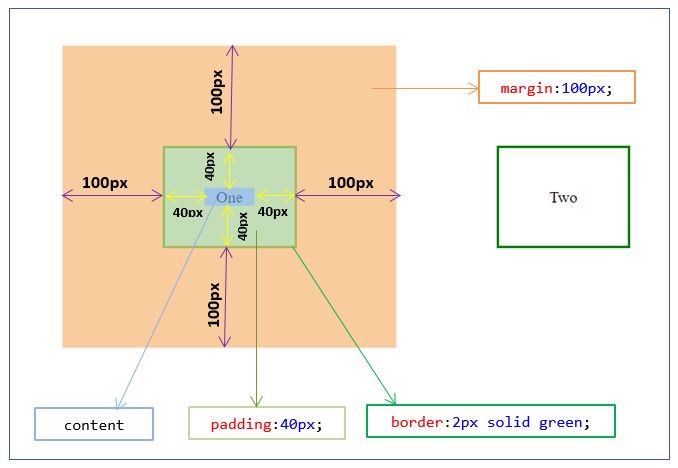
The CSS box model is a fundamental concept that describes how elements are rendered on a web page, treating each element as a rectangular box with distinct, nested layers:
content, padding, border, and margin. This model is crucial for controlling the layout and spacing of elements.
The standard CSS box model is composed of four components, which are:
(Content,Padding,Border,Margin)
https://res.cloudinary.com/scale-web/image/upload/q_auto,f_auto/blog/2022-06-04-css-box-model/drawing-box-model.png
Content:
The innermost layer containing the element's actual material, such as text, images, or other HTML elements [1]. Its dimensions are defined by the CSS width and height properties.
Padding:
A transparent space that surrounds the content. It is used to create space between the content and the border, enhancing readability and visual appeal. The background of the element extends into the padding area.
Border:
A line that wraps around the padding and content areas. It is visible and can have its style, color, and thickness specified using CSS properties like border-style, border-color, and border-width.
Margin:
The outermost layer, a transparent space surrounding the border. It is used to create space between the current element and adjacent elements on the page. Margins are entirely transparent and do not have a background.
How Spacing Affects Layout
Understanding how these components contribute to the total space an element occupies is vital for effective layout design:
- Total Size Calculation: By default, an element's specified
widthandheightproperties only define the dimensions of the content area. The actual space the element takes up on the page also includes the padding, border, and margin. - Controlling Overlap and Distance:
- Padding adds internal space, pushing the border away from the content.
- Margins add external space, pushing adjacent elements away from the current element.
- Collapsing Margins: Vertical margins between two adjacent elements can "collapse," meaning the larger of the two margins is used for the separation distance, rather than the sum of both,This is an important consideration when trying to achieve precise vertical spacing.
- The
box-sizingProperty: The default behavior can be changed using thebox-sizing: border-box;declaration. When applied, thewidthandheightproperties define the total outer dimensions of the element, including the content, padding, and border, making layout calculations much more intuitive
Example
Demonstration of the box model:
div {
width: 300px;
border: 15px solid green;
padding: 50px;
margin: 20px;
}
Width and Height of an Element
In order to set the width and height of an element correctly in all browsers, you need to know how the box model works.
Important: When you set the width and height properties of an element with CSS, you just set the width and height of the content area. To calculate the total width and height of an element, you must also include the padding and borders.
Example
This <div> element will have a total width of 350px and a total height of 80px:
div {
width: 320px;
height: 50px;
padding: 10px;
border: 5px solid gray;
margin: 0;
}
Here is the calculation:
320px (width of content area)
+ 20px (left padding + right padding)
+ 10px (left border + right border)
= 350px (total width)
50px (height of content area)
+ 20px (top padding + bottom padding)
+ 10px (top border + bottom border)
= 80px (total height)
The total width of an element should be calculated like this:
Total element width = width + left padding + right padding + left border + right border
The total height of an element should be calculated like this:
Total element height = height + top padding + bottom padding + top border + bottom border
Note: The margin property also affects the total space that the box will take up on the page, but the margin is not included in the actual size of the box. The box's total width and height stops at the border.
https://encrypted-tbn0.gstatic.com/images?q=tbn:ANd9GcScQzth4fcl-bZBPLLuUHgRuujetRvKuvBgQg&s
for more example consult the Google chrom/Dev,
Comments
0No comments yet. Be the first to share your thoughts!